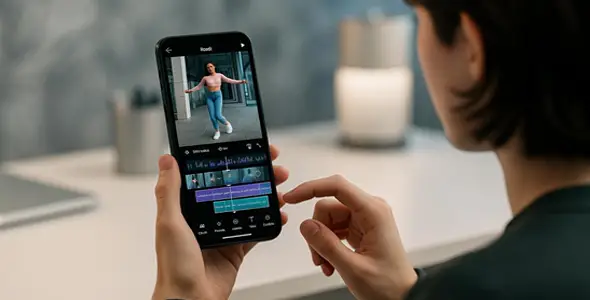
Quick Answer InShot is an excellent mobile editor for TikTok creators thanks to its fast vertical editing, AI auto captions, trending music library, smooth transitions, and high-quality 1080p/60fps exports. Use 9:16 canvas, quick trim tools, speed ramping, text animations, and AI features to create viral-ready videos in minutes. Free version works great for beginners; Pro removes watermarks for professional posts. Pair it with trending sounds and effects for maximum reach.
InShot for TikTok Creators: Best Tips, Features & Workflow in 2026
Key Takeaways
- Perfect 9:16 vertical workflow for TikTok.
- AI captions and effects save editing time.
- Built-in trending music and sound effects.
- Fast exports at 1080p 60fps.
- Easy speed changes and transitions for engaging clips.
- Great for duets, transitions, and text overlays.
- Free version is powerful; Pro for frequent creators.
- Combine with TikTok trends for better performance.
Introduction
TikTok demands quick, eye-catching videos. InShot delivers exactly that with its simple yet powerful tools tailored for mobile creators. In 2026, InShot remains a top choice for TikTok because of its speed, AI features, and platform-friendly exports.
This guide shows TikTok creators how to use InShot effectively. You will discover the best features, step-by-step workflows, pro tips, and platform-specific tricks to grow your account faster.
Whether you are a new creator or looking to improve your editing, these InShot strategies will help you produce scroll-stopping TikTok content.
Table of Contents
- Why InShot Is Great for TikTok Creators
- Setting Up the Perfect TikTok Project
- Must-Use InShot Features for Viral TikToks
- Step-by-Step TikTok Editing Workflow in InShot
- Editing Tools for TikTok Videos
- Text, Transitions & Effects for Higher Engagement
- Music & Audio Tips for TikTok
- Export Settings Optimized for TikTok
- Free vs Pro for TikTok Creators
- Common TikTok Editing Mistakes in InShot
- Advanced Tips from Top Creators
- FAQ
- Conclusion
Why InShot Is Great for TikTok Creators
InShot excels for TikTok because:
Intuitive vertical editing interface
Fast performance on phones
Strong AI features like auto captions
Huge library of effects and transitions
Reliable 1080p/60fps exports
Easy layering and speed controls
Its mobile editing workflow combines trimming, effects and export tools in one app.
Key Point: InShot helps TikTok creators edit faster without sacrificing quality.
Setting Up the Perfect TikTok Project
- Open InShot and tap Video > New.
- Choose 9:16 aspect ratio immediately.
- Import clips from your gallery.
- Set canvas to fit vertical content.
Advanced options include codec and audio settings.
Key Point: These controls give full flexibility for any project.
Key Point: Preparation leads to cleaner AI results with less manual editing.
Step-by-Step TikTok Editing Workflow in InShot
- Import clips and trim to 15–60 seconds.
- Add trending audio and adjust timing.
- Insert text with animations synced to beats.
- Apply smooth transitions between clips.
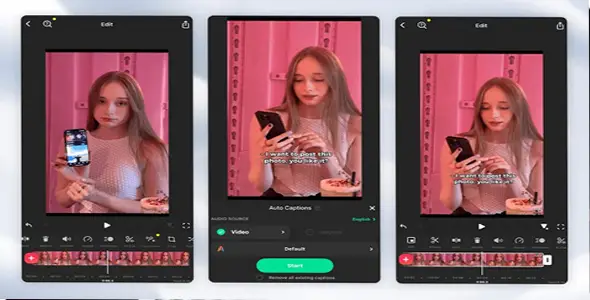
- Add AI captions and effects.
- Use speed changes for emphasis.
- Preview in full screen.
- Export with TikTok-optimized settings
Repeat and refine your style.
Key Point: A consistent workflow lets you produce more content quickly.
Must-Use InShot Features for Viral TikToks
- Quick Trim & Split — Remove dead space instantly.
- Speed Ramping — Create smooth slow-mo or fast transitions.
- Auto Captions — Add subtitles automatically.
- Picture-in-Picture — For duets or reaction overlays.
- Keyframes — Animate text and objects.
- Cutout Tool — For disappear or clone effects.
This prevents cropping issues when uploading to TikTok.
Key Point: Starting with the correct ratio saves time and avoids frustration.
Editing Tools for TikTok Videos
Auto Captions → Essential for silent viewing.
Trim and Split → Removes awkward pauses.
Background Removal → Clean overlays.
AI Effects & Enhancers → Instant polish.
Use one or two per video for best results.
Key Point: AI tools give TikTok creators a professional edge with minimal effort.
Text, Transitions & Effects for Higher Engagement
Keep text large, short, and animated.
Use popular transitions like glitch or zoom.
Add stickers and emojis sparingly.
Sync effects to music beats.
Pro Tip: Test text readability on mobile.
Key Point: Dynamic text and effects increase watch time and shares.
Music & Audio Tips for TikTok
Browse available music in InShot, and check that you have permission to use it.
Import original audio or voiceovers.
Balance music and voice levels.
Add sound effects for impact.
Original audio combined with trending tracks often performs well.
Key Point: Strong audio is key to TikTok success.
Export Settings Optimized for TikTok
Resolution: 1080p
Frame Rate: 60fps
Bitrate: High
Aspect Ratio: 9:16
Remove watermark (Pro)
Export and upload directly from your gallery.
Key Point: These settings ensure sharp playback and fast uploads on TikTok.
Free vs Pro for TikTok Creators
Free Version:
Full core features
Watermark on exports
Great for learning and testing
Pro Version:
Clean exports
Full music and effects library
Faster workflow for daily posting
Many creators start free and upgrade as they grow.
Key Point: Pro becomes valuable once you post consistently.
FAQ
Is InShot good for TikTok?
Yes — it is fast, easy, and produces great results.
Can I use InShot Free for TikTok?
Absolutely, though Pro is better for regular creators.
How do I add trending sounds in InShot?
Use audio you have permission to publish, or add an available licensed sound within TikTok after uploading your video.
Best length for InShot TikTok videos?
Choose a length that fits your subject. Test different lengths with your audience; no duration guarantees higher engagement.
Does InShot support 60fps export?
Yes, perfect for smooth TikTok videos.
Conclusion
InShot is a powerful ally for TikTok creators in 2026. Its vertical workflow, AI tools, and quick editing features help you produce viral content efficiently.
Start using these tips today: set up 9:16 projects, leverage AI captions, and optimize your exports. Consistent practice with InShot will improve your videos and help grow your TikTok account.
Final Recommendation: Download or open InShot, create a short trending-style video using the workflow above, and post it. Iterate and watch your editing speed and video quality improve rapidly.
Create, post, and repeat — success on TikTok starts with great edits!
For the next step, read our InShot export settings guide or compare InShot free and premium features. Check the official InShot listing on Google Play for current feature availability; menus and paid options can vary by version and platform.