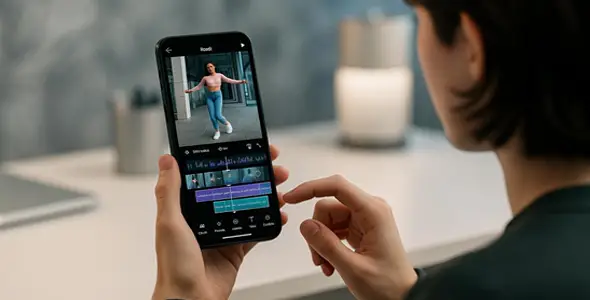
InShot Video Editing Tips for Beginners: Easy Guide to Pro Results in 2026
Quick Answer Start with InShot by downloading the free app, choosing the right aspect ratio (9:16 for Reels/TikTok), importing clips, trimming dead space, adding trending music, text with animations, and simple transitions. Key beginner tips include using AI auto captions, keeping edits short and snappy, previewing often, and exporting in 1080p or 4K. With these basics, beginners can create polished social media videos in minutes. Practice one feature at a time and you’ll improve fast.
Key Takeaways
- Choose the correct canvas size before editing.
- Always trim unnecessary parts first.
- Use AI tools like auto captions to save time.
- Add music and text for higher engagement.
- Preview on your target platform.
- Start simple — don’t overload with effects.
- Export clean and test the final video.
- Free version is perfect for learning.
Introduction
InShot is one of the easiest and most powerful video editing apps for beginners. You don’t need expensive software or prior experience. Many creators started with InShot and now make professional-looking content for Instagram, TikTok, and YouTube.
This guide shares practical InShot video editing tips for beginners. You will learn step-by-step techniques, common mistakes to avoid, and simple ways to make your videos stand out quickly.
Whether you want to edit vacation clips, product reviews, or daily vlogs, these tips will help you create engaging videos right away. Let’s get started.
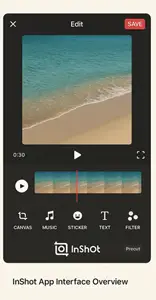
Table of Contents
- Getting Started with InShot
- Setting Up Your First Project
- Essential Trimming and Cutting Tips
- Speed Control and Slow Motion Made Easy
- Adding Music and Audio Like a Pro
- Text, Stickers, and Captions Tips
- Using Filters, Effects, and Transitions
- Helpful Editing Tools for Beginners
- Picture-in-Picture and Basic Layers
- Exporting Videos the Right Way
- Common Beginner Mistakes to Avoid
- 10 Quick InShot Tips to Level Up Fast
- FAQ
- Conclusion
Getting Started with InShot
Download InShot from the App Store or Google Play. It’s free and works on both Android and iOS.
Open the app and allow storage permissions. You will see options for Video, Photo, or Collage. Tap Video for most projects.
Tip: Update the app regularly to get the latest AI features and improvements.
Key Point: A clean installation and permissions setup makes your first edit smooth and frustration-free.
Setting Up Your First Project
- Tap New under Video.
- Select your clips or photos from the gallery.
- Choose the aspect ratio immediately:
- 9:16 for vertical stories/Reels/TikTok
- 1:1 for Instagram posts
- 16:9 for YouTube
- Tap the canvas icon to adjust background blur or zoom if needed.
Starting with the right ratio prevents headaches later.
Key Point: Setting canvas size first ensures your video fits the platform perfectly.
Essential Trimming and Cutting Tips
Trimming is the most important beginner skill.
- Zoom into the timeline for precise cuts.
- Drag the yellow handles to remove unwanted parts.
- Use the Split tool to cut in the middle.
- Delete extra clips easily.
Pro Beginner Tip: Remove pauses that distract from your message, while keeping natural breathing room and a pace that suits the subject.
Key Point: Clean trimming creates professional flow from the start.
Speed Control and Slow Motion Made Easy
Tap any clip and select Speed.
Slow down action moments (0.5x or lower).
Speed up boring sections (2x or higher).
Use the curve tool for smooth speed ramping.
Reverse a clip for fun effects.
Beginner Tip: Combine slow motion with a zoom for dramatic reveals.
Key Point: Smart speed changes add energy and emotion to your videos.
Helpful Editing Tools for Beginners
InShot’s AI makes editing easier:
Auto Captions — Generate subtitles automatically.
Trim and Split — Remove silent pauses.
Background Removal — One-tap clean look.
Enhance — Improve video quality quickly.
Start with one AI tool per project.
Key Point: AI features help beginners achieve pro results with minimal effort.
Picture-in-Picture and Basic Layers
Use PIP to add a small video or photo overlay.
Tap PIP and import another clip.
Resize and position it.
Add simple keyframe movement if desired.
Great for reaction videos or before/after shots.
Key Point: Basic layering adds depth to beginner edits.
Exporting Videos the Right Way
Tap Export.
Choose resolution (1080p for most social media, 4K if needed).
Set frame rate (30fps or 60fps).
Export and check the file.
Tip: Test on the actual platform (Instagram/TikTok) to see how it looks.
Key Point: Correct export settings ensure your video looks sharp and professional.
Common Beginner Mistakes to Avoid
Starting without choosing aspect ratio.
Adding too many effects and text.
Forgetting to trim silence.
Ignoring audio balance.
Exporting without previewing.
Overusing trendy transitions.
Fix these and your videos improve instantly.
Key Point: Avoiding these mistakes builds strong editing habits early.
10 Quick InShot Tips to Level Up Fast
- Use Trim and Split first on raw footage.
- Choose a length suited to your message and the destination platform.
- Match text animation speed to music beats.
- Note your preferred filter and intensity settings for consistency.
- Add subtle zoom keyframes on photos.
- Use cutout tool for simple disappear effects.
- Group clips and apply changes to all.
- Preview in full screen often.
- Experiment in Free version before buying Pro.
- Watch short InShot tutorials inside the app.
FAQ
Is InShot good for complete beginners?
Yes — it has a simple interface and helpful built-in guides.
Do I need to pay for InShot?
No. The free version is excellent for learning.
How do I add text in InShot?
Tap the Text button on the main editing screen.
Can beginners make TikTok videos with InShot?
Absolutely — it’s one of the best apps for it.
How long does it take to edit a video as a beginner?
Editing time depends on the clip length, project complexity and your experience. Start with a short practice clip.
Conclusion
Mastering InShot video editing as a beginner is easy when you follow these practical tips. Start simple, practice regularly, and gradually add advanced features like AI tools and keyframes.
Your first videos might not be perfect — that’s normal. Keep editing and you will see fast improvement.
Final Recommendation: Open InShot right now, import a short clip, trim it, add music and text, then export. Complete one video today and build from there.
You’ve got this!
Continue with our 15 InShot editing tips and export settings guide. For current Android features and download details, consult the official InShot listing on Google Play. Tool names and paid features may vary by app version.